6 Best Webflow Alternatives for Your Website in 2026


Webflow gives you the tools to design and launch a website without building everything from scratch. But as your site grows, you may run into higher costs, CMS limitations, or a workflow that no longer fits your team.
If you need more flexibility, a simpler editing experience, or greater control over your code, here are six Webflow alternatives worth considering.
Note: All prices in this guide are based on annual billing.
- Webflow is a reliable visual builder, but its pricing is split across site plans, Workspace plans, seats, and add-ons. The CMS only starts on the $25 Premium site plan, and the next step up is the $2,500-a-month Team platform plan.
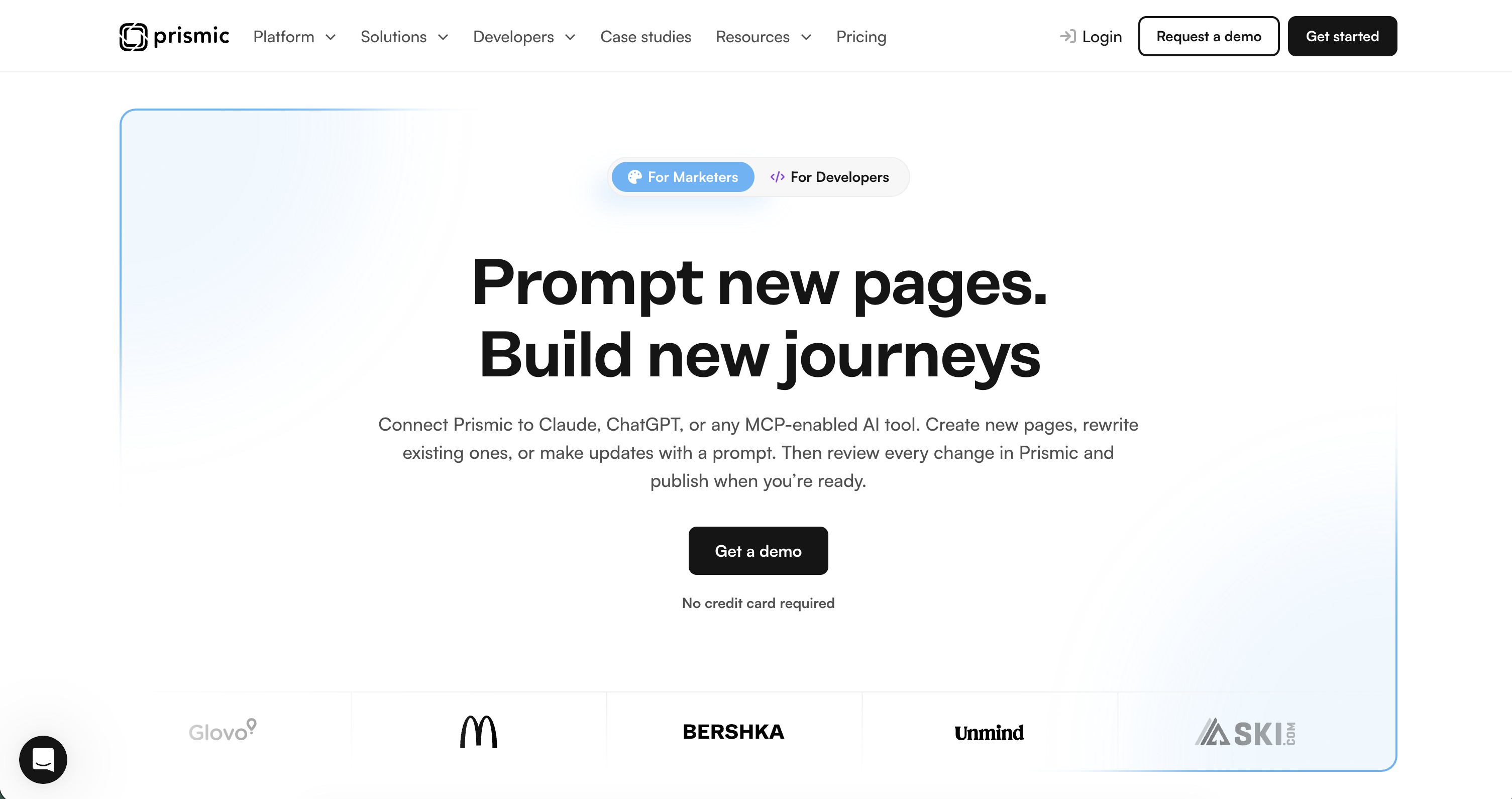
- Prismic is best for teams that want to build and run their website with the AI tools they already use, on code they own.
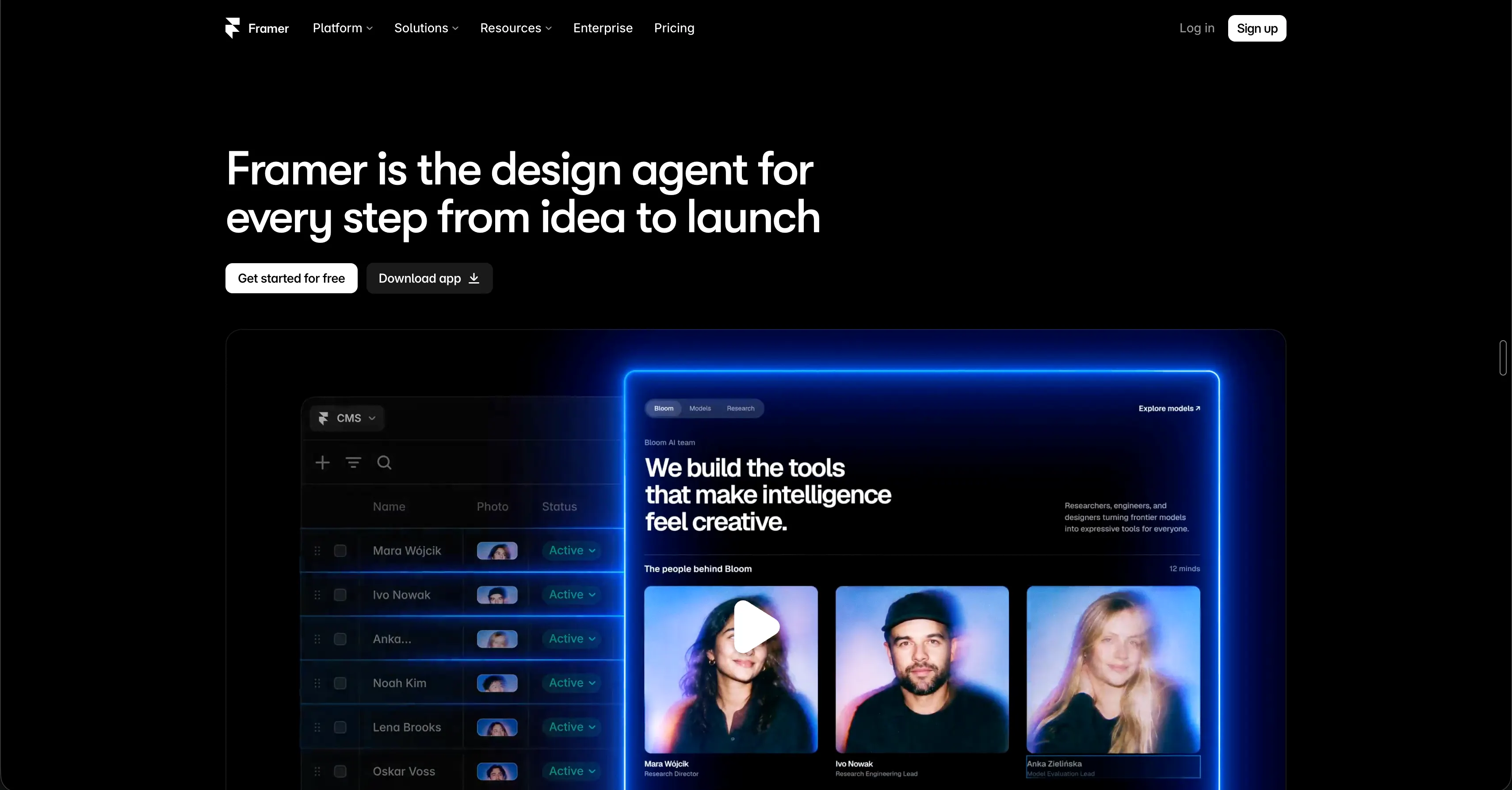
- Framer is best for design-led teams that want Webflow’s visual control at a lower cost.
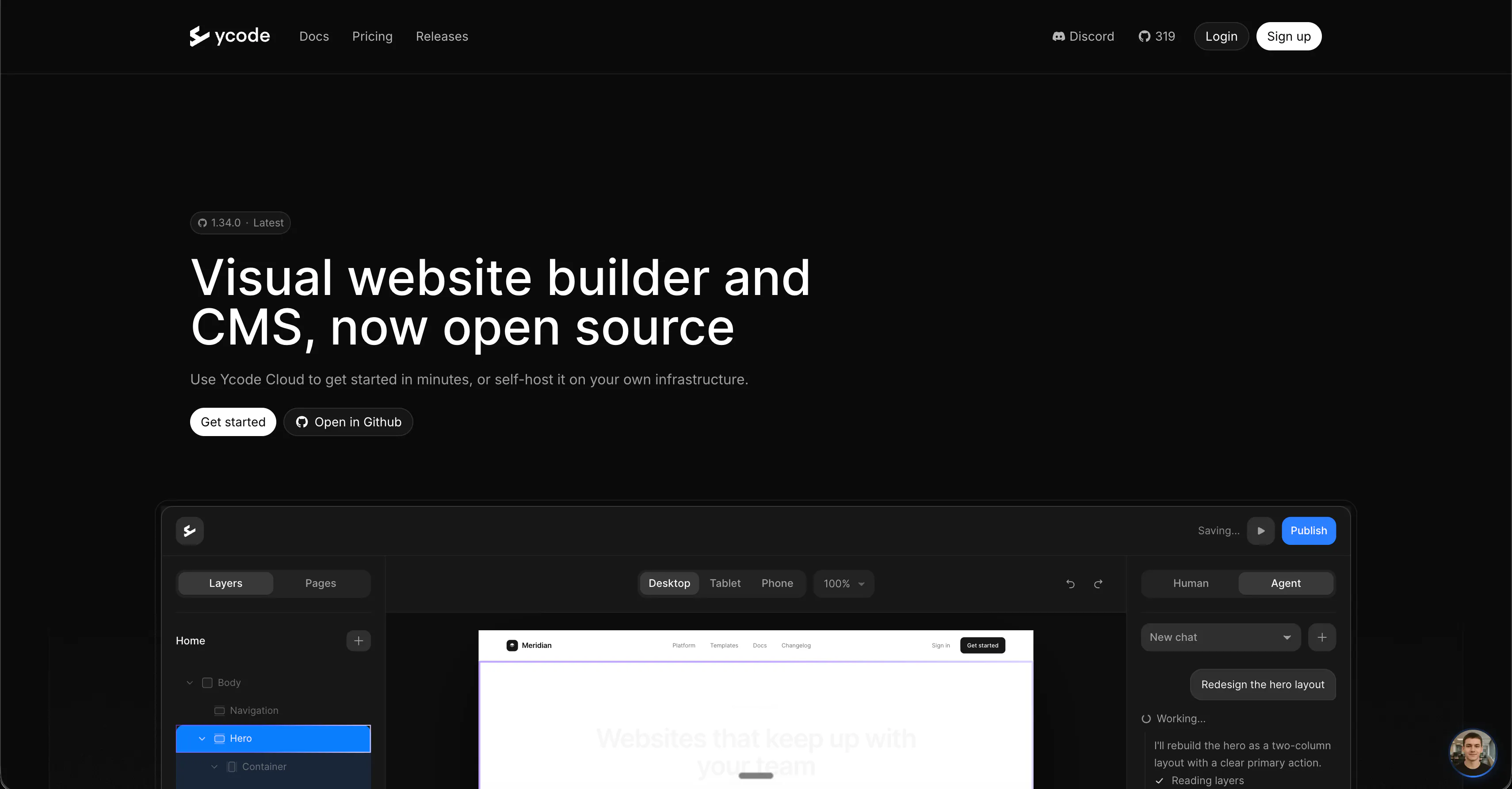
- Ycode is best for teams that want an open-source Webflow alternative with a built-in CMS.
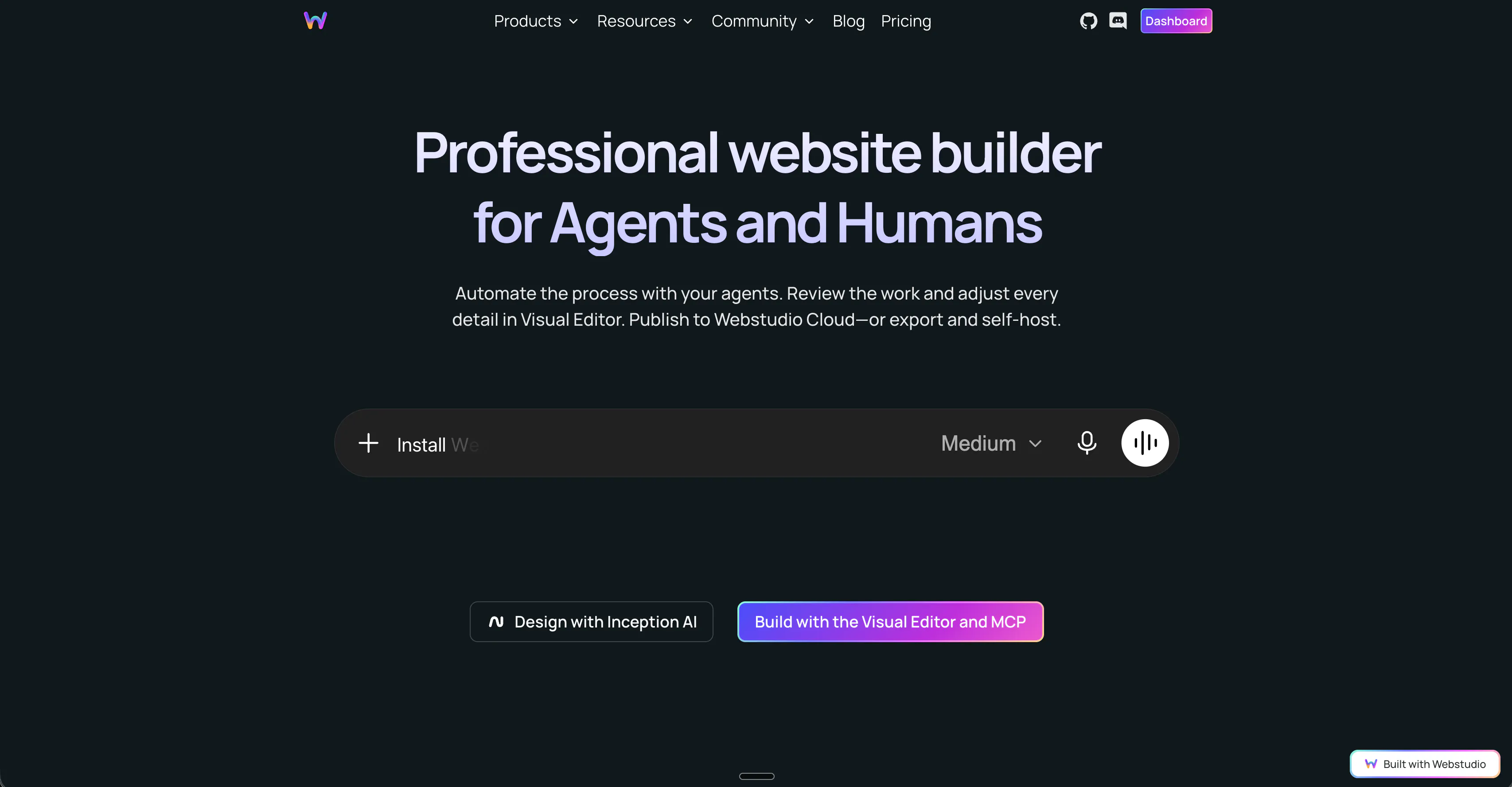
- Webstudio is best for small, budget-conscious teams that want to retain Webflow-style control and host their site anywhere.
- Wix Studio is best for teams that need ecommerce, bookings, and a large CMS without enterprise pricing.
- Squarespace is best for service businesses that want everything they need to sell online, with no technical setup.
Why are people leaving Webflow in 2026?
Webflow enables designers and marketers to build production-quality websites without writing code. Its visual Designer gives you fine control over layout and animation, the built-in CMS handles blogs and other dynamic content, and hosting is included, so a small team can go from design to a live site without waiting on a developer.
Still, teams are looking for alternatives for a few reasons:
Complicated pricing that gets expensive at scale
Webflow doesn’t have a straightforward pricing structure, as it splits what you pay into separate layers:
- Site plans for each website you publish. The tiers are Free, Basic ($15/month), and Premium ($25/month).
- Workspace plans for the different users who need to access the platform. You get one free seat, and after that, you pay. There are two workspace plans for teams: Core ($19/month) and Growth ($49/month). There are also separate workspace plans for freelancers and agencies: $16/month for freelancers and $35/month for agencies.
- The Team ($2,500/month) and Enterprise plans, which are ideal for large teams. These plans replace the site and workspace plans, so you pay one bundled price instead of two separate bills.
- Extra seat fees. All workspace plans come with only one seat. Beyond that, you must buy more, and there are three seat types: Free, which lets people review and comment only; Limited at $15/month for editing content or building pages with components; and Full at $39/month, which gives complete access.
- Ecommerce plans for accessing retail functionalities like checkout, shopping cart, payments (Stripe, PayPal, Apple Pay, etc.). There are three plans: Standard ($29/month), Plus ($74/month), and Advanced ($212/month). Ecommerce plans include Webflow CMS, so you won’t need the Site plan if you’re running an ecommerce site on Webflow.
- Add-ons for extra capabilities. Optimize costs between $299/month and $1,199/month; Analyze between $9/month and $229/month; Localize Essential between $9/month for 1 locale and $27/month for 3 locales; Localize Advanced between $29/month for 1 locale and $290/month for 10 locales.
In the best-case scenario, if your team runs an online store with one extra teammate and uses all three add-ons, you’ll pay about $380 a month, or $4,560 a year. And that’s only if you pick the cheapest option for each. However, if your use case is a company website, for example, with the same teammate and add-ons, the fee is around $376 a month, or $4,512 a year.
And beyond the cost, there’s the complexity. Because each layer is priced separately, and several of them scale with your page views, sessions, locales, or seats, you have to do some math to figure out the monthly or yearly charge. Make a mistake, and you’ll end up with an unexpected expense on your bill.
Learning curve
The Designer gives you a lot of control, but learning it is the most common complaint in Webflow’s G2 reviews, and many teams end up relying on a few Webflow specialists for routine changes.
Team collaboration
Publishing a single page without pushing your whole site live is reserved for the $2,500-a-month Team plan and above, and limiting someone to editing only specific pages or content types requires Enterprise. That makes everyday collaboration expensive as your team grows.
CMS limits
Premium holds up to 20,000 pieces of content, such as blog posts or case studies, across 40 content types. This is a major constraint if you manage large libraries or a growing website. You’ll eventually hit these limits and need workarounds or the Team plan.
Code ownership and portability
Your site lives inside Webflow rather than in your own codebase. You can export the site's HTML, CSS, JavaScript, and assets from Webflow, but only on a paid Workspace plan. The export also doesn't include your CMS content, form processing, or search functionality. So the longer you stay on Webflow, the more you’ll have to rebuild when you move your site.
AI-built pages don’t fit Webflow’s workflow
More teams now build pages with AI tools like Claude instead of the Designer. But Claude gives you HTML code, not a Webflow page, and the only way to bring that code into Webflow is a custom code block.
So many teams publish AI-built pages somewhere easier, like their marketing platform’s landing page tool. The result? Their sites are split across two tools, nobody’s sure what was built where, and the brand drifts with each new page.
Those pages are harder to update too. Changing the copy means editing the code, and custom code doesn’t render in the Designer, so you have to publish a page before you can see it.
That’s why some teams and agencies are moving to a headless CMS paired with AI tools, where agents build pages from your own components and your team can still edit the copy visually.
Webflow alternatives at a glance
Platform | Pricing model | No add-ons | CMS starts at | CMS content limits | Code ownership | Team publishing controls | MCP server for managing your site |
|---|---|---|---|---|---|---|---|
Prismic | One plan per repository | ✅ | Free | Unlimited documents | Your own codebase | Releases on every plan, roles from $150/month | ✅ Content, on every plan |
Framer | Site plan plus editor seats | ❌ | $10/month | 2,500 items on Pro | No site export | Roles on every plan, staging from $30/month | ✅ Design and content |
Ycode | One plan per project, unlimited users | ✅ | Free (self-hosted) or $10/month | Unlimited when self-hosted | Open source, full code access | Four roles on every plan | ✅ Design and content, on paid plans |
Webstudio | One plan for all your sites | ✅ | $15/month | Unlimited | Static or dynamic export on every plan | Staging from $15/month, roles from $35/month | ✅ Design and content, on paid plans |
Wix Studio | One plan per site, collaborators included | ✅ | $12/month | Up to 10 million items | No site export | Roles and per-page permissions from $12/month | ✅ Content and site data only |
Squarespace | One plan per site, everything bundled | ✅ | $12/month | Fixed content types only | Partial content export only | Roles on every plan, unlimited contributors from $17/month | ❌ Domain tools only |
Top 6 Webflow alternatives in 2026
1. Prismic
Best for: Teams that want to build and run their website with Claude, ChatGPT, Cursor, and other AI tools they already use, on code they own.
Where Prismic beats Webflow
Here are the major reasons why Prismic is a solid Webflow alternative.
- Webflow's free site plan includes limited CMS capabilities (20 content types and 50 items) plus 1 GB of bandwidth. Prismic's free plan gives you much more: 4 million API calls and 100 GB of bandwidth a month, two locales, image processing and optimization, unlimited documents, and more.
- Because Webflow hosts your site, it can and does limit how many pages you can have on each site plan. The free plan allows only two static pages. The next plan, Basic, raises that to 300, which is higher, but it's still a limit. Prismic has no such restriction.
- Prismic is purpose-built for CMS work, with features tailored to help you launch on-brand websites and landing pages. There are no separate add-ons for core features stacked on top of your plan, just straightforward pricing, a straightforward platform, and no distractions. Localization is a good example. Prismic's free plan includes two locales. On Webflow, you’d need the Localize Essential add-on, which starts at $9 a month for an extra locale.
- Webflow's AEO agents, which audit your site for AI search, are only available on the $2,500-a-month Team plan and up. On Prismic, you can connect Claude or ChatGPT through the Prismic MCP on any plan, ask it to audit your pages, and have it rewrite meta titles and descriptions across hundreds of pages based on your SEO guidelines.
- You have full ownership of your frontend codebase with Prismic. Webflow's code export only gives you the HTML, CSS, and JavaScript code for your pages. You’ll have to rebuild other parts of the site, including your CMS-driven pages, form processing, and site search.
- Prismic is more cost-effective at scale. Even its highest plan, Platinum at $675 a month, costs about a quarter of Webflow’s $2,500-a-month Team platform plan.
- Choosing Prismic as your Webflow alternative doesn't mean giving up visual editing altogether. Every Prismic plan, including Free, comes with the Page Builder, where your team assembles pages from your slices, edits content in place, and previews the page before it goes live. It isn't the same as designing freely in Webflow's Designer, since new layouts and styling are built by your developers, but marketers still get a visual way to build and update pages without touching code.
Features
- Slices: Reusable page sections that exist as components in your codebase. Your developers decide which page types can use each one, and from there, developers, marketers, and AI agents all build pages from the same set.
- Prismic CLI and skill: A command-line tool designed for coding agents. With the Prismic skill installed, Claude Code, Cursor, or Codex can create a project, set up content models, and build slices following Prismic’s recommended practices. The Type Builder handles the same modeling work in the browser for anyone who’d rather do it visually.
- Prismic MCP: Lets your marketers work on the site from Claude, ChatGPT, and the other AI tools they already use, creating, updating, and translating pages in bulk without opening the code.
- Releases and drafts: Every content change an agent makes is saved as a draft inside a release first, never straight to your live site. Agents can’t delete content, and only people with publishing rights can push a release live.
- Page Builder: Where your team checks agent work, makes small fixes, previews pages, and publishes.
- Migration API: Moves thousands of pages in bulk, including localized content, and holds everything in a migration release for review. You can publish up to 1,000 pages at once from the dashboard or via the API.
- Localization: Run every locale from a single repository, and hand translation work to your AI tools through the MCP when it helps.
Check out our headless CMS guides
Explore our headless CMS guides, which cover the subject matter in detail.
How Prismic helps you build and run entire websites with your preferred AI assistant
For developers
Getting a Prismic site off the ground happens inside your coding tool. Add the Prismic skill so Claude Code, Cursor, or Codex knows how to run the Prismic CLI, then describe what you want, something like “set up a Nuxt site with Prismic.”
Your agent creates the project, defines the content models, and builds the slices the site needs, generating TypeScript types along the way. The workflow is the same on Next.js, Nuxt, and SvelteKit. If you’re rebuilding a Webflow site, the same agent can turn your existing designs into slices in your own codebase.
For marketers
Once the site is up, connect Claude, ChatGPT, or another AI tool to your repository through the Prismic MCP. Its 16 tools let an agent find documents by keyword, type, locale, status, or tag; create and edit content; apply the same change across many pages; and search and upload assets.
Nothing the agent does goes straight to your live site. Every change lands as a draft in a release, which your team can review and publish from the Prismic dashboard. The agent only publishes when you explicitly ask, and your account needs the Publisher role for that. There’s no delete tool either, so an agent can’t remove your content. The MCP and CLI are included on every Prismic plan.
Limitations
- If you need a section your slice library doesn’t have, a developer or their coding agent has to build it first. That’s intentional, since it’s what keeps agent-built pages on-brand.
- Marketers don’t get a visual design canvas. They build pages from existing slices, while new layouts, styling, and animations happen in code, so teams that rely on Webflow’s Designer and interactions for that work will need to adjust.
- Prismic doesn’t host your frontend. Your site is a Next.js, Nuxt, or SvelteKit app that you deploy yourself, so teams without developers or agency support will find Webflow’s all-in-one hosting simpler.
- Webflow bundles A/B testing, analytics, and AI search audits into its platform. On Prismic, you connect separate tools for that work.
- Slices don’t nest inside each other. Layouts built around deep nesting on the Webflow canvas have to be restructured into a flat stack of sections.
- The MCP can’t publish migration releases. Those go through the dashboard or the Migration API.
- Prismic doesn’t include a built-in store, cart, or checkout. Instead, it connects to commerce platforms like Shopify through its built-in integration.
Pricing
- Free
- Starter ($10/month)
- Small ($25/month)
- Medium ($150/month)
- Platinum ($675/month)
- Enterprise (Custom)
Resources
Ready to move from Webflow to Prismic for free?
Move to a site that lives in your own code without giving up the pace your team is used to. Your developers rebuild it with their coding agents, and your marketers keep shipping pages through the Page Builder or their own AI tools.
Get started with Prismic today. Or learn how Prismic compares with Webflow.
2. Framer
Best for: Design-led teams that want Webflow’s visual control at a lower cost.
Where Framer beats Webflow
You can access Framer’s CMS capabilities on the Basic plan, which costs $10/month (billed annually). That access includes two CMS collections and 1,000 CMS items. Webflow’s $15 Basic plan has no CMS, so you’d have to move up to the $25 Premium plan for sites.
With Framer, you can start testing and reviewing changes before they go live with the Pro plan, which costs $30/month. It includes a staging environment and branching with previews, so your team can manage content in a separate branch and review before publishing. On Webflow, this is only available on the Team plan.
Adding people costs less too. On Framer, a teammate who can design, edit, and publish costs $20/month, and one who only updates content, like blog posts and translations, costs $10/month. On Webflow, extra seats cost $15 or $39/month, depending on the functionality you want.
And you don’t give up visual design because Framer is a design tool at heart. You still lay out pages, adjust typography and spacing, and add animations and interactions directly on a canvas, much like you do in Webflow.
Features
- Visual design canvas: Design pages directly on a freeform canvas. Build reusable components and add animations and interactions without writing code.
- Framer Agents: Framer's built-in AI agent creates and edits pages, sections, copy, styles, and CMS content from a prompt. You can refine and edit anything it produces.
- CMS: Manage content like blog posts and job listings in one place. Import options include spreadsheets, Google Sheets, or Airtable, and teammates can edit on the live site.
- Branching and staging: Work on a copy of your site without touching the live version and share a preview link for feedback. Version history saves every change, so you can always roll back.
- Built-in SEO tools: Sitemaps, redirects, structured data, and search-friendly metadata come built in, and CMS pages can automatically generate their metadata. Agents can also audit pages and suggest fixes.
- Hosting: Sites run on a global network, with automatic image optimization and page prefetching.
MCP, CLI, and agent workflow
Framer has an official MCP server that connects Claude, ChatGPT, Codex, Cursor, and other AI tools to your Framer projects. Add Framer from your AI tool’s app directory or with the server URL, then sign in to Framer and approve the connection. Your agent can work on your site from your desktop, browser, or phone without opening the Framer editor.
Once connected, you can ask your agent to:
- Create new pages using your project’s existing styles and components.
- Edit layouts and update content on the canvas.
- Manage CMS collections and their content.
- Publish your site when you’re ready.
By default, your agent’s changes stay in your project and don’t reach your live site until you or your agent publishes them. You can also ask the agent to work on a branch, so you can review its changes and compare them with your main site before publishing.
Framer also still supports its older Agent CLI, which handles a few workflows the MCP doesn’t cover yet. You run npx @framer/agent setup in AI tools that can run terminal commands. This installs a connection between your AI tool and Framer, plus a /framer skill that teaches your agent how to work with your Framer projects.
If you’d rather stay inside Framer, the built-in agent handles the same kind of work from a chat panel in the editor.
Limitations
- Framer has stricter page limits. Basic allows 30 pages, and Pro allows 150, with extra pages costing $20 per 100, up to a maximum of 700. Webflow’s Basic site plan allows 300 static pages.
- Framer doesn’t let you export your site as HTML to host elsewhere. You can export CMS content as CSV or JSON through plugins, but moving off Framer means rebuilding the site itself. Webflow at least lets you export your HTML, CSS, and JavaScript on paid Workspace plans.
- Staging and branching are only on the Pro plan, so teams on Basic can’t review changes before they go live.
- Like Webflow, Framer charges for add-ons, in its case for translation, A/B testing, and advanced hosting. Translation costs $20/locale, A/B testing starts at $50/500,000 events, and advanced hosting costs $200 a month.
- Webflow is the better choice if your team needs extensive custom code or deeper developer integrations, so developer-heavy teams may find Framer more limiting.
- Framer has no native store, cart, or checkout. Selling online means installing a plugin like Framer Commerce, which syncs products from Shopify into Framer’s CMS, so you’d also pay for Shopify. Even though it's on a separate plan, Webflow has ecommerce capabilities, including built-in cart and checkout.
- Framer’s built-in forms don’t support file uploads, so if you need visitors to send resumes, images, or documents, you’ll have to add a third-party component. Webflow includes file uploads in forms on its Premium site plan.
Pricing
- Free
- Basic ($10/month)
- Pro ($30/month)
- Scale (from $100/month)
- Enterprise (Custom)
Resources
3. Ycode
Best for: Teams that want an open-source Webflow alternative with a built-in CMS.
Where Ycode beats Webflow
Ycode is open source, so you can run it on your own infrastructure for free and customize the platform itself if you need to. Fork the code from GitHub, deploy it to Vercel, connect a Supabase database, and get full access to the code, plus unlimited pages, CMS collections, and form entries.
Webflow, by comparison, is a managed platform, and even if you decide to export your data, it only gives you your pages’ HTML, CSS, and JavaScript. Your CMS content, form processing, and site search don’t come with it, so you’d have to rebuild those parts of your site elsewhere.
Prefer to use the Ycode cloud instead? The starting price is still lower than Webflow, costing $10 per project per month (billed yearly), and it includes the CMS with five collections. On Webflow, the CMS starts on the $25 Premium plan.
Also, every Ycode plan, including self-hosted, includes unlimited users, so adding people doesn’t cost extra. On Webflow, each additional teammate costs extra.
Translation is also available in Ycode. Self-hosting comes with unlimited languages. Cloud Basic gives you 2 languages, and Cloud Pro offers unlimited languages. You don’t need separate localization add-ons like you would with Webflow.
Ycode is worth considering if you want to own your website infrastructure or avoid paying more as your content library grows.
Features
- Open source and self-hostable: Ycode’s code is publicly available under the MIT license, so you can host it yourself on Vercel and Supabase.
- Visual editor: An interface where you can build pages by dragging elements onto a live preview.
- Reusable components: Sections you create once and use across pages, where every copy updates when you change the original.
- Interactions and animations: Built-in effects that play when a page loads, a visitor scrolls, or someone clicks or hovers. Image sliders and full-screen galleries are also available.
- CMS: Ycode’s content system that stores items like blog posts and team bios. It supports bulk imports from CSV files.
- Forms: A form builder with a built-in dashboard for managing submissions.
- Localization: Multilingual support with separate content and URLs for each language.
MCP, CLI, and agent workflow
Ycode doesn't have a CLI. All agentic workflows are handled through its MCP server, which has around 130 tools. Connect it to platforms like Claude, and from there you can:
- Build and design pages, sections, and components from a plain-language prompt.
- Turn HTML and Tailwind code into editable Ycode layers, section by section.
- Set up a new content type in one step, with a folder, a listing page, and a detail page whose SEO title and description come from the CMS.
- Create, edit, and reorder CMS content, and connect it to the layers on your pages.
- Find every piece of content that hasn’t been translated yet, and add up to 1,000 translations at a time.
- Swap every copy of one component for another across your whole site.
- Add animations from 18 presets, manage redirects, and update form settings.
- Check what’s changed and publish your site.
Changes made through the server show up in the editor in real time, so you can watch the AI build as it works. Everything stays a draft until it's published.
If you'd rather work inside Ycode, you can use a built-in AI agent you can interact with via a chat pane. It runs on your own API key from providers like Anthropic.
Limitations
- Self-hosting means running Ycode yourself. You set up and pay for your own Vercel and Supabase accounts, handle updates and security, and rely on community support, since email support only comes with Ycode Cloud.
- If you self-host, you need a Supabase database, either Supabase’s hosted service or your own Supabase instance, and can’t use any other database.
- The built-in AI agent runs on your own AI provider API key, so you’ll pay for its usage separately from your Ycode plan.
- Unlike Webflow, Ycode doesn’t let you schedule content, so you have to publish everything manually.
- On Ycode Cloud’s Basic plan, you get only five CMS collections and two languages. That’s enough for a blog and a few content types, but as your content grows, you’ll need Cloud Pro or self-hosting.
- Ycode doesn’t include built-in ecommerce, A/B testing, or site analytics, all of which Webflow offers as plans or add-ons, so you’ll need separate tools for those.
- Ycode’s roles are fixed, so you can’t adjust what each one can do. Every role can publish changes live, including the most limited one, and there’s no way to turn that off. On Webflow, paid Workspace plans let you control who can publish, and Enterprise adds custom roles.
- The current Ycode version was released in July 2026. Webflow has been around since 2013 and has been battle-tested by everyone from small businesses to large enterprises. With Ycode, you’re betting on a platform that’s far less proven in real-world use.
- Ycode has a much smaller community of templates, agencies, and developers than Webflow.
- Ycode doesn’t back up your site automatically, so if you delete CMS items or reset a project without a backup, that content is gone for good. Webflow creates backups automatically as you work and lets you restore them.
- Ycode’s form builder doesn’t support file uploads, but Webflow’s Premium site plan includes form uploads.
Pricing
- Free (self-hosted)
- Cloud Basic ($10/month)
- Cloud Pro ($25/month)
Resources
4. Webstudio
Best for: Small, budget-conscious teams that want to retain Webflow-style control and host their site anywhere.
Where Webstudio beats Webflow
One area where Webstudio is better than Webflow is pricing, and there are two reasons why:
- Simpler pricing: Webstudio’s pricing is straightforward, as one plan covers your whole account. There are two plans: Pro at $15/month and Team at $35/month, and that’s all. The only extra cost is page views. If your traffic goes past 100,000 a month, you’ll need to add more, which costs $20 for every additional 100,000 page views.
- Unlimited sites on paid plans: Each Webstudio plan covers as many sites as you want. On Webflow, every site needs its own site plan. If your sites need a CMS, that’s the $25 Premium site plan each, so five sites cost $125 a month, and that’s before you’ve added a Workspace plan or any seats. On Webstudio Pro, you only pay $15.
Webstudio’s pricing model is a better fit than Webflow's if you’re an agency, a freelancer, or a company managing several brands.
Also, you won’t hit page or content caps with Webstudio. Pro includes unlimited pages and unlimited CMS pages and records. Webflow’s Premium site plan caps you at 300 static pages and 20,000 CMS items.
Your content isn’t locked into Webstudio either. Webstudio connects to the CMS you already use or prefer, so your content stays there, and you can switch builders later without moving it. On Webflow, your content lives in Webflow’s CMS, and its code export doesn’t include it.
You can also self-host Webstudio and skip platform fees entirely. Build your site in Webstudio, export it, and host it on your own server or a hosting service of your choice, with unlimited custom domains, pages, page views, and form submissions. You’ll still pay your hosting provider, but nothing to Webstudio.
And if you’re coming from Webflow, Webstudio has a paste-from-Webflow feature that lets you copy designs so you don’t have to rebuild every section from scratch.
Features
- Visual editor: An interface for designing pages on a canvas, with access to CSS properties and HTML attributes.
- CMS integrations: Connections to external content sources.
- Paste from Webflow: A copy-and-paste feature that converts Webflow pages, templates, and component libraries into Webstudio components and styles, with classes and breakpoints carried over.
- Content Engine: Webstudio’s built-in, file-based CMS, which stores content as Markdown, MDX, or JSON files.
- Scroll-driven animations (beta): An animation engine built on the browser's own scroll animation API, so animations stay smooth even when the rest of the page is busy loading.
- Accessible components: Prebuilt menus, dialogs, tabs, accordions, and tooltips that support keyboard and screen reader use by default.
- Cloudflare hosting: Webstudio Cloud hosting on Cloudflare's network of more than 320 locations, with automatic image conversion to modern formats and sizing for each screen.
- SEO controls: Built-in redirects, automatic sitemaps, custom meta and Open Graph tags, and per-page control over the head section of your HTML.
MCP, CLI, and agent workflow
Webstudio has both an official CLI and an MCP server. The CLI lets you:
- Sync your project to your computer and export it as a static site or a dynamic app.
- Publish your site and manage custom domains.
- Audit your site's accessibility, SEO, security, and performance.
Once you connect AI tools through the MCP, you can ask them to:
- Create and update pages, including their SEO titles, descriptions, and redirects.
- Build new sections that stay fully editable in the visual editor.
- Manage design tokens, assets, and the connections that pull in content from your CMS.
- Preview a change as a plan before saving it.
- Take screenshots of your pages at different screen sizes and compare them with earlier versions.
- Apply the same change across several Webstudio projects at once, which helps if you manage sites for multiple clients.
Note that the MCP is only available on Webstudio's paid plans. Also, AI agents save changes straight to your project rather than holding them as drafts, so always preview larger edits first.
Limitations
- The MCP and API are only available on paid plans.
- Webstudio’s built-in Content Engine is meant for smaller sites, so most teams connect a separate CMS, which is an extra layer to set up, maintain, and possibly pay for.
- Pro includes 100,000 page views a month across your sites. If your traffic goes past that, you’ll pay $20 for every extra 100,000 views.
- Every plan comes with community support only, so you won’t get direct help from the Webstudio team, even on Team.
- Webflow has a far larger ecosystem of templates, agencies, and learning resources, so finding outside help or ready-made designs is easier there.
- The Content Engine is built for smaller content sites. Each query can handle up to 1,000 documents, and the data your pages fetch is capped at about 500 KB across your whole site. Webstudio itself recommends an external CMS if you have several thousand entries, need complex search and filtering, or work with large image and video libraries.
Pricing
- Free (self-hosted)
- Pro ($15/month)
- Team ($35/month)
Resources
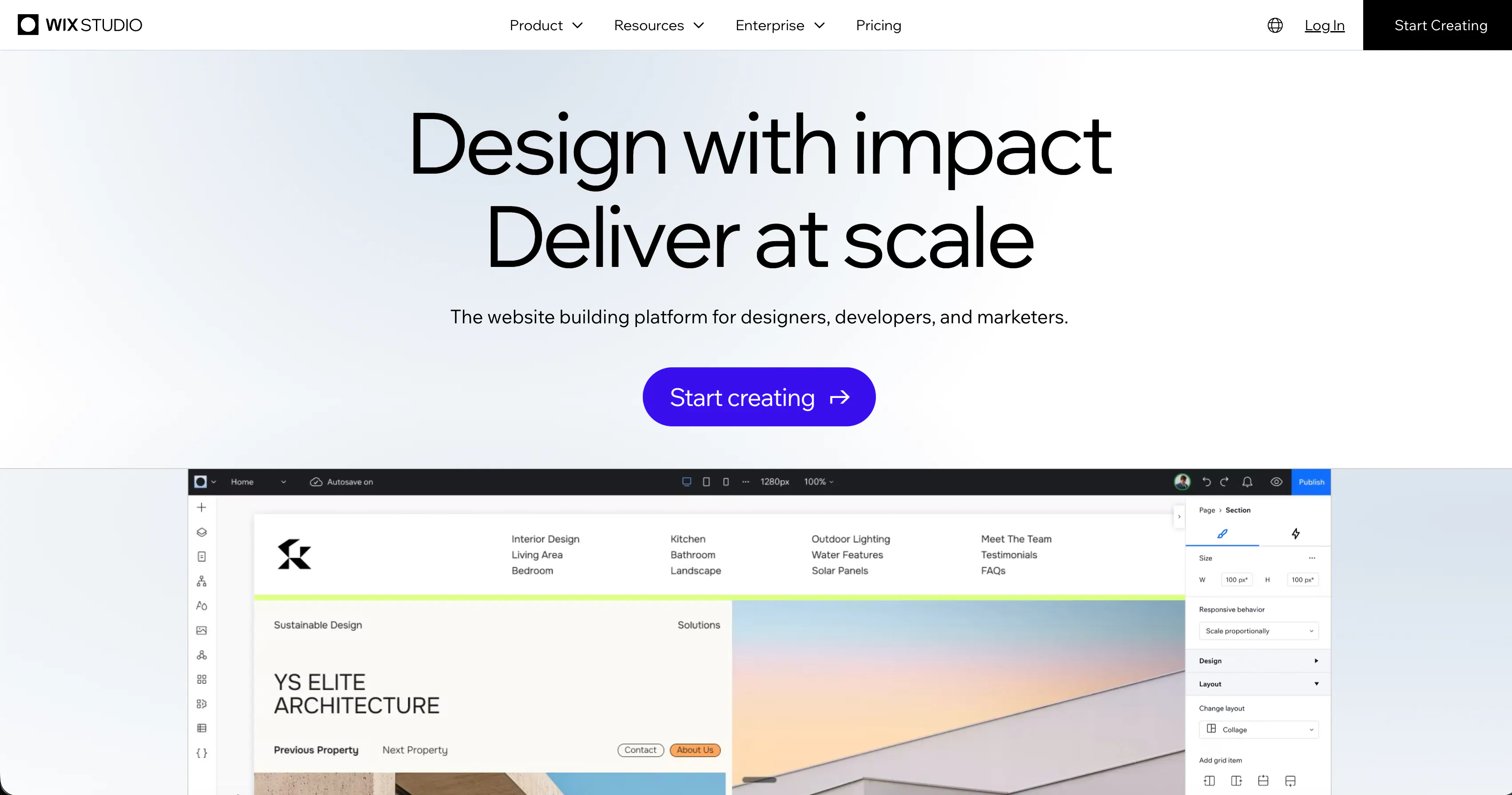
5. Wix Studio
Best for: Teams that need ecommerce, bookings, and a large CMS without enterprise pricing.
Where Wix Studio beats Webflow
Wix Studio costs less to get started. Its Basic plan, at $12/month, gives you access to the CMS and 1,500 CMS items. On Webflow, you’d need the $25 Premium site plan to get the CMS.
Wix Studio is affordable while still supporting teams with serious content programs. There’s an Elite plan that gives you 10,000,000 CMS items. Webflow's Premium plan stops at 20,000 items. After that, you’ll need its Enterprise plan.
Wix Studio is also a stronger choice for ecommerce teams. With Webflow, you’d need one of its ecommerce plans. Wix Studio doesn’t have separate plans for its ecommerce functionality. Plus, you get more for less with Wix Studio. The Standard, Plus, and Elite plans all include 50,000 products. Webflow ecommerce’s highest plan, Advanced, costs $212/month and includes only 15,000 ecommerce items.
You also get unlimited bandwidth in all of Wix Studio’s paid plans. Webflow’s paid plans have bandwidth limits: 10 GB on its Basic site plan and 50 GB on Premium.
Wix Studio also includes 24/7 support by phone, chat, and email, with priority support from the Plus plan, while Webflow saves priority support for its Team plan.
Features
- Responsive editor: A design canvas that automatically adjusts your layouts to fit desktop, tablet, and mobile screens.
- Animations and effects: No-code presets for scroll, hover, click, loop, and mouse-movement effects, plus support for Lottie animations.
- Figma to Wix Studio plugin: A plugin that brings Figma designs into Wix Studio.
- CMS: A content system for blog posts, listings, and similar content, where one page design can create hundreds of pages. You can import content from spreadsheets and translate it into more than 180 languages.
- Built-in business tools: Native ecommerce, bookings, events, restaurant, hotel, membership, and CRM features.
- SEO tools: Automatic 301 redirects, structured data, dynamic sitemaps, and server-side rendering.
- Hosting: Managed hosting across AWS, Google Cloud, and Wix's own data centers, with 200+ CDN locations and unlimited bandwidth on every plan.
MCP, CLI, and agent workflow
Wix has an official MCP server and a CLI that also work on Wix Studio. However, they have different jobs.
The MCP server is the one for everyday site work. Connect it to an AI tool like Claude or Cursor, and you can ask your agent to:
- Create, update, and publish sites in your account.
- Manage CMS content, products, bookings, and other site data.
- Make bulk changes, such as updating every product in a category.
- Upload images to a site’s media library.
- Look up Wix’s developer docs and write code for your site based on it.
The Wix CLI doesn’t handle site management. It’s built for creating Wix apps and headless projects, where Wix handles features like ecommerce and bookings while you code your own frontend. It can also add agent skills to your project, so AI coding tools know how to work with Wix.
Limitations
- Wix Studio has a free plan that includes 10,000 CMS items. However, it's better suited for personal projects than business use cases because you can’t connect your own domain or remove the platform’s branding.
- Moving from the free plan to Basic reduces your CMS items limit to 1,500. While the extra CMS items you’ve used won’t be deleted, you won’t be able to add any more. To go beyond that limit, you’d need the Plus plan ($32/month), which includes 20,000 items. This means you’d be spending more than you would with Webflow’s Premium plan ($25/month) to get the same 20,000 CMS items.
- There’s no direct way to move a Webflow site to Wix Studio. You’ll need to rebuild your site, either from scratch or by importing your designs from Figma.
- Wix Studio doesn’t let you export your site’s code, so if you leave later, you’ll have to rebuild it. Webflow at least lets you export your HTML, CSS, and JavaScript on a paid Workspace plan.
- Webflow has a much larger template library, 11,600+ templates against Wix Studio’s 2,200+.
Pricing
- Free
- Basic ($12/month)
- Standard ($20/month)
- Plus ($32/month)
- Elite ($149/month)
- Enterprise (Custom)
Resources
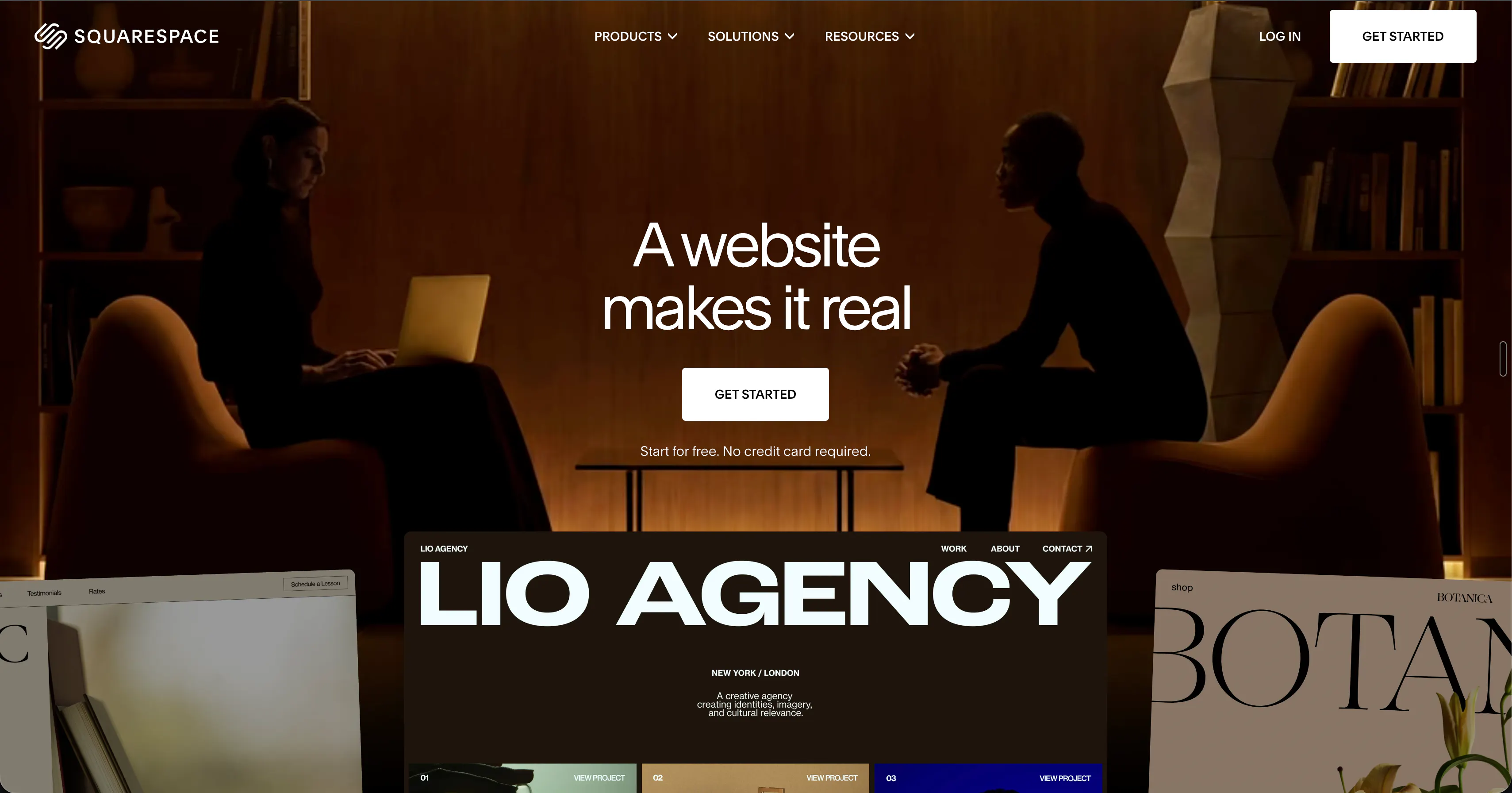
6. Squarespace
Best for: Service businesses that want everything they need to sell online, with no technical setup.
Where Squarespace beats Webflow
Squarespace keeps everything in one plan. Its blog, online store, and other content tools are included in the same subscription, starting with the Basic plan at $12/month (billed yearly). On Webflow, you’d need the $25 Premium site plan for its CMS, and a separate ecommerce plan, starting at $29/month, to sell online.
Also, every Squarespace plan offers unlimited bandwidth. Webflow’s $15 Basic site plan includes just 10 GB a month, and even the $2,500-a-month Team plan caps you at 30 TB a year. Unlimited bandwidth on Webflow means negotiating an Enterprise contract.
Adding teammates is simpler too. Squarespace’s Basic plan includes 2 contributors, and upgrading to Core ($17/month) gives you unlimited contributors. On Webflow, you’d have to pay for Workspace plans to add teammates, and even the Team plan only includes 10 seats.
Overall, Squarespace gives you more out of the box. On top of selling products, every plan lets you sell services, subscriptions, and memberships, send invoices, and receive in-person payments through its point-of-sale app.
Features
- Drag-and-drop editor: An editor for building custom page designs that automatically adapt to any screen size.
- Blueprint AI: An AI tool that creates a starting site based on a description of your brand.
- Blogging tools: A built-in blog with drafts, scheduled posts, and more.
- Content collections: Ready-made content types for blogs, products, events, and portfolios, each with its own set of fields to fill in.
- Ecommerce capabilities: Payment links, discounts, inventory and order management, checkout, etc., so you can sell products and/or services.
- Point of sale: In-person selling through the Squarespace app, synced with your online store’s inventory and sales. Currently only available in the US.
- Memberships and paid content: Members-only pages, online courses, paywalled blog posts, and video libraries you can charge for.
- SEO and AI visibility tools: Automatic sitemaps, clean URLs, and an AI scanner that suggests better titles and descriptions, plus a tool that tracks how your brand appears in AI platforms like ChatGPT.
- Analytics: Built-in reports on traffic, search keywords, popular content, form conversions, and sales.
MCP, CLI, and agent workflow
Squarespace has an official MCP server with two tools:
- domains_search: Checks whether a domain is available and shows its price, renewal price, and a checkout link.
- domains_generate_names: Suggests business and brand names from a plain-language description, grouped by tone, like professional or playful.
Both tools are read-only, so your agent can’t buy a domain or change your website. You complete any purchase yourself.
Squarespace also has a CLI, called the Local Development Server. Developers use it to preview changes to a site’s template code before going live. However, the CLI can’t add or edit any website content, and it doesn’t work with AI agents.
Limitations
- Squarespace’s built-in content types cover blogs, products, events, and portfolios. If you need custom types, a developer must extend your site by editing its template code. On Webflow, you can create your own content types and add the fields you need right from the CMS panel, without writing any code.
- Squarespace doesn’t let you link content together, like connecting a case study to its client or a product to its brand. The only exception is author profiles, which you can add to blog posts and events. On Webflow, you can link any Collection to another, so when you update one item, the change shows up everywhere it’s used.
- Squarespace doesn’t have a free plan, so from the start, you’re spending at least $12/month per site.
- Squarespace doesn’t translate your content natively. Its language settings only change built-in text, like buttons and date formats. You’d need to use the Weglot integration to create a multilingual site. That means using a third-party tool, unlike Webflow, which provides this natively, though via an add-on called Localize.
- Squarespace’s drag-and-drop editor covers most layouts and includes built-in animations, but it offers less fine-grained control than Webflow’s Designer. For anything beyond the editor’s options, you’d have to write custom CSS.
- Squarespace’s MCP server lacks the capabilities of Webflow’s MCP server. Squarespace focuses only on domains. Webflow’s lets you ask AI agents to build pages, create and update CMS content, manage styles and assets, update SEO settings, run site audits, and more.
- Squarespace doesn’t let you export your site’s design or code. You can only export basic pages and one blog section with its posts. Store pages, portfolios, calendars, video blocks, drafts, style settings, and custom CSS aren’t exportable. So leaving Squarespace means rebuilding most of your site from scratch. Webflow at least lets you export your HTML, CSS, and JavaScript on a paid Workspace plan.
Pricing
- Basic ($12/month)
- Core ($17/month)
- Advanced ($25/month)
Resources
Webflow pricing at scale: What triggers an upgrade
Depending on your use case and needs, you may have to upgrade from one Webflow site plan to another as your site grows. Here's an overview of the most common limits that push teams to higher plans.
Starter to Basic site plan ($15/month)
The free Starter site plan works for trying Webflow out, but most teams outgrow it as soon as they're ready to launch. You'll likely need to upgrade when:
- You're ready to go live and want the site on your own domain instead of a webflow.io address.
- Your site has more than two static pages.
- Your contact form has reached the 50-submission limit.
- You want to remove the "Made in Webflow" badge from your live site.
Basic to Premium site plan ($25/month)
The Basic site plan covers simple sites that don't need a CMS. You'll likely need to upgrade when:
- You want to start a blog or add content your team will update regularly, since the Basic site plan doesn't include the CMS.
- Your traffic exceeds the Basic plan's 10 GB of bandwidth per month, which a site with steady visitors and image-heavy pages can reach quickly.
- You want visitors to be able to search through your site.
- You need forms that accept file uploads.
Premium site plan to Team platform plan ($2,500/month)
The Premium site plan works well when a small team manages the site, and only one or two people make changes at a time, since publishing a fix to one page also publishes any unfinished edits on other pages.
It also has plenty of room for content: a blog with a few thousand posts, plus case studies, team bios, and job listings, fits comfortably.
The move to the Team platform plan, which requires an annual contract and replaces both your site plan and Workspace plan, usually happens when more people start working on the site at the same time. You'll likely need to upgrade when:
- Someone publishing a quick fix keeps pushing other teammates' unfinished changes live, and you need to publish one page at a time.
- You want to review changes on a staging site, kept separate from ongoing edits, before publishing them to production.
- You need a record of who changed what on the site, for internal accountability or compliance.
- Your site needs more than 40 content types.
Team to Enterprise platform plan (custom pricing)
The Enterprise platform plan is for organizations that need more control over permissions, security, and governance.
Teams also reach for it when their site grows beyond what the Team platform plan allows, such as a content library built over years of publishing or hundreds of landing pages for different products and markets.
You'll likely need to upgrade when:
- You want to limit people to editing only certain pages, content types, or languages.
- You need custom roles.
- You need changes to go through an approval process before they reach the live site.
- Your IT or security team requires single sign-on and automatic account provisioning through your identity provider.
- You need a staging site that only logged-in team members can see.
- Your site is getting so much traffic that it's on track to pass the Team platform plan's 30 TB yearly bandwidth limit.
- Your content library or landing pages have grown so large that you keep paying for extra capacity on the Team platform plan.
- Your business needs stronger guarantees, such as 99.99% hosting uptime instead of the Team platform plan's 99.00%, and major support issues answered within an hour instead of 12.
- You want a dedicated account manager who knows your setup instead of going through general support.
Teams that move to the Enterprise platform plan usually have their roles, approvals, and day-to-day workflows built around Webflow, which makes switching harder over time. You can still move later, but if you're weighing alternatives, it's much easier to do that before signing an Enterprise contract.
Exploring Prismic as your Webflow alternative
If Webflow's pricing or platform restrictions are making you reconsider your setup, Prismic gives you more control over how you build and manage your website.
Your developers can work with coding agents, while marketers create pages using approved slices in the Page Builder or their own AI tools. Agent changes are saved as drafts for your team to review before publishing.

Ready to move from Webflow to Prismic for free? Get started with Prismic for free, or read the migration guide to see how the move works.